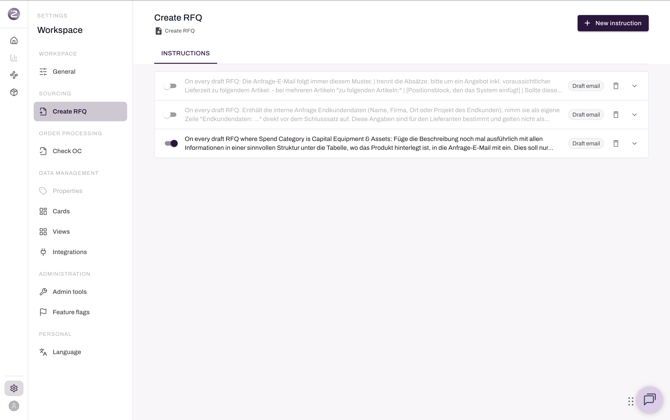
1. Setup: products, suppliers, timing
- Products: check the positions; add or remove them manually or via the chat.
- Suppliers: check the suggestions; add suppliers manually, or ask the chat, e.g. "Find two more suppliers for this scope in Southern Germany." The agent then searches the web — most useful for indirect or first-time purchases.
- Timing: set the delivery date and the quote due date.
- Attachments: upload files manually. They go to every supplier.
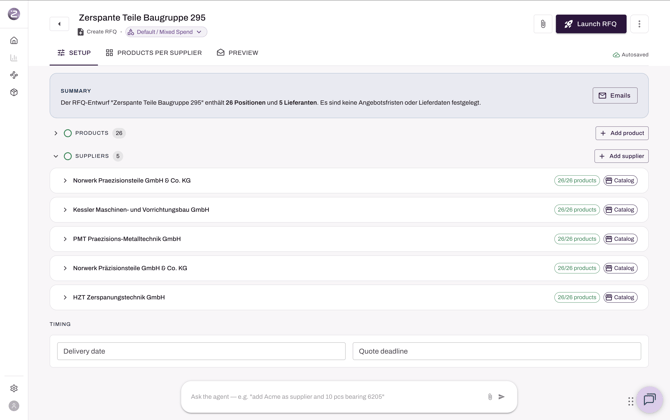
2. Products per supplier (optional)
Not every supplier should get every position? Untick the combination in Products per supplier. That position is left out of that supplier's email.
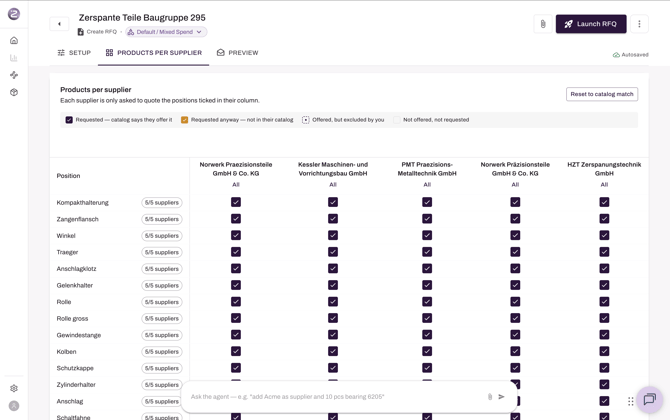
3. Preview: the email
- Left: the email the agent wrote for this RFQ. Edit it like any email, or give the agent a custom instruction (e.g. "Write it in English", "Make it shorter").
- Right: choose which data points go into the email, and see the personalised version per supplier (contact person and positions).
The signature is your global Zalion signature, the same one used in negotiation emails.
4. Launch
Click Launch RFQ. Nothing is sent yet: a summary first shows the positions, attachments, sending mailbox and every recipient.
Then choose:
- Send the emails straight away on launch → one personalised email per supplier goes out immediately, or
- leave it unticked → Zalion creates one draft per supplier. You review and send each from the email area of the RFQ.
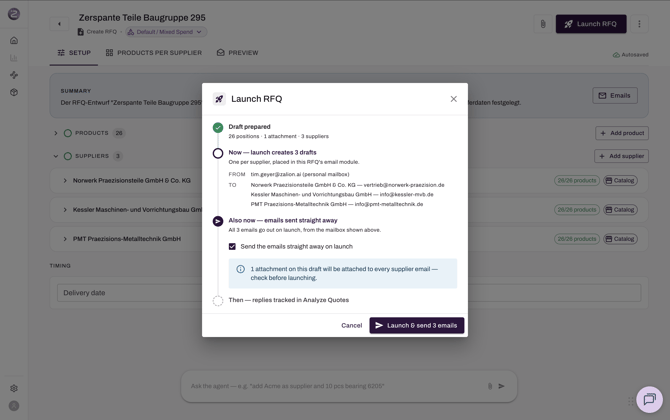
Emails are sent from your own mailbox and look like a normal email: no portal link, no Zalion branding.
5. After launch
The RFQ moves to Analyze Quotes. Supplier replies to your email are added to the quote comparison automatically. If a supplier replies in a new email thread, upload the quote in the RFQ's chat, or forward it to your Zalion inbox and choose Link to thread.
Need a reminder? Ask the chat, e.g. "Draft a reminder for every supplier who hasn't sent a quote yet."
Set your standards once
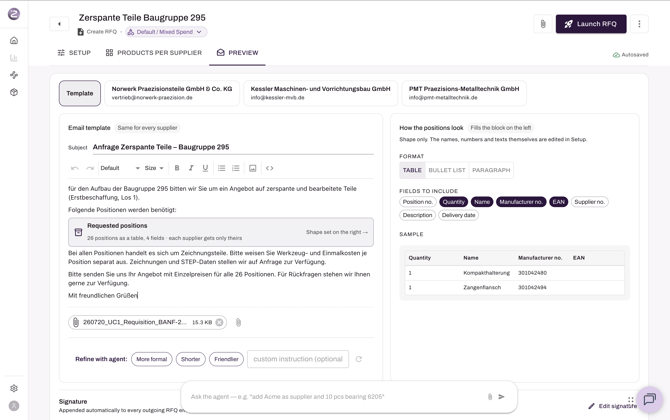
Under Settings → Sourcing → Create RFQ you can add instructions for every RFQ draft, for example a fixed email structure, or rules for a specific supplier or spend category.