
The Email panel brings all of your supplier communication for a thread into a single, reliable place. You have the full communication history, your active drafts, and the option to compose new emails in one panel - right next to your work.
The panel is available in every Zalion agent that sends or receives email, including the Sourcing Agent and the Order Confirmation Agent. It looks and behaves the same way everywhere - once you know it in one place, you know it everywhere.
Note on scope: The panel is tied to the specific thread you are working in. It shows the full email history of that thread across all the suppliers involved in it. It does not (yet) combine a single supplier's communication across multiple threads.
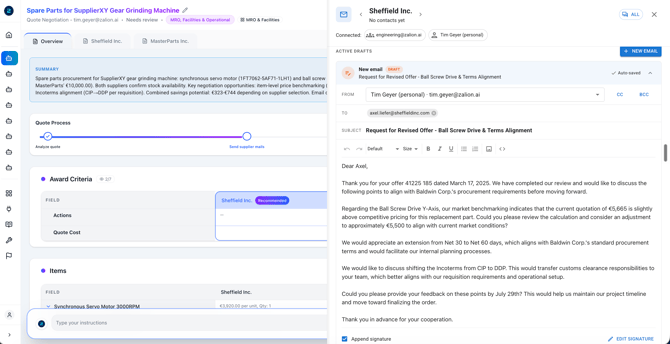
Opening the panel
You can open the panel anywhere you work with email:
- From the chat, as soon as the agent prepares or references an email.
- Via the email button in the summary at the top of the thread.
The panel opens next to your current view without dimming the rest of the screen, so you can keep working. Drag the left edge to make the panel narrower or wider.

Switching between suppliers
A thread can involve several suppliers. The panel gives you a focused view per supplier as well as a combined view.
- Per-supplier view. The panel header shows the current supplier and their email address(es). Use the left and right arrows next to the name to page through the other suppliers in the thread. Each view shows only that supplier's drafts and communication history.
- Open from a supplier. If you open the panel from a supplier's detail tab, it opens pre-filtered to that supplier - you land directly in their view, with no detours.
- The "All" view. Switch to All at the top right to see all drafts and messages from every supplier in the thread in one place, including internal clarifications. From here you select a supplier to start a new email, or open one to manage its drafts.
- Threads with a single supplier. If only one supplier is involved, only their view is shown - there is nothing to page through.
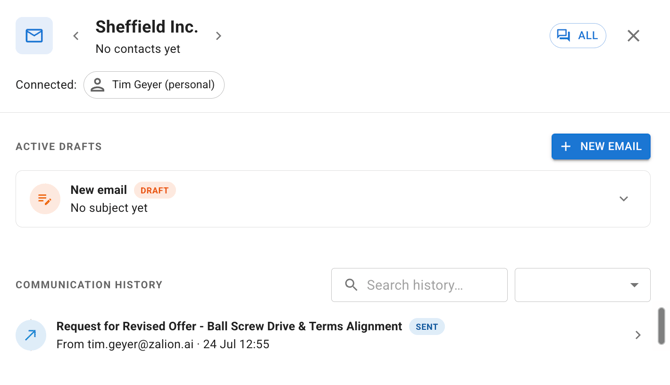
Viewing the communication history
In the panel, the History area shows the email history as a timeline. In a supplier's view you see that supplier's messages; in the All view you see all messages from every supplier in the thread, including internal clarifications.
- Each entry shows the sender, subject, a short preview, and the status.
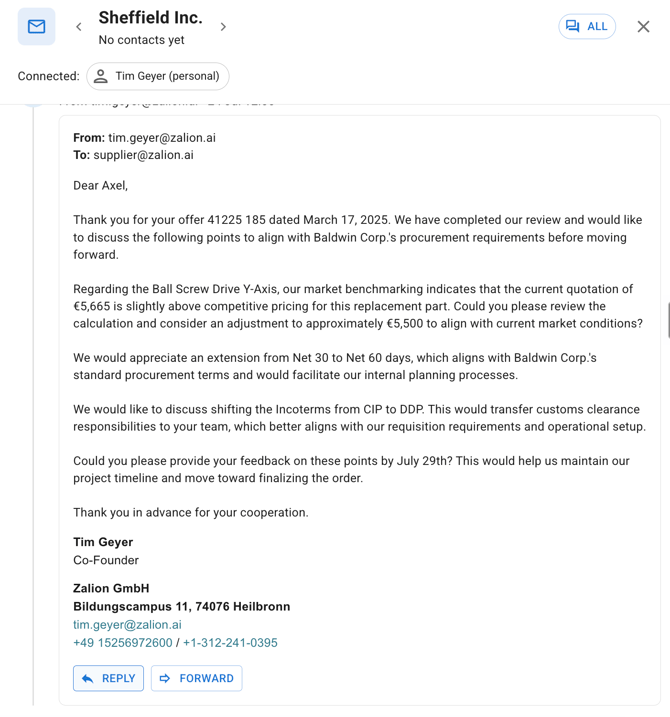
- Open an entry to read the full message including attachments.
- Use the search and the address filter at the top of the history to quickly find a specific message.
Replying within a conversation
You can respond to incoming emails without leaving the panel. Open a received message in the history and use Reply or Forward to answer. Your reply re-threads into the same conversation, and this applies to every subsequent email in it - so the full exchange stays in one place.
Working with drafts
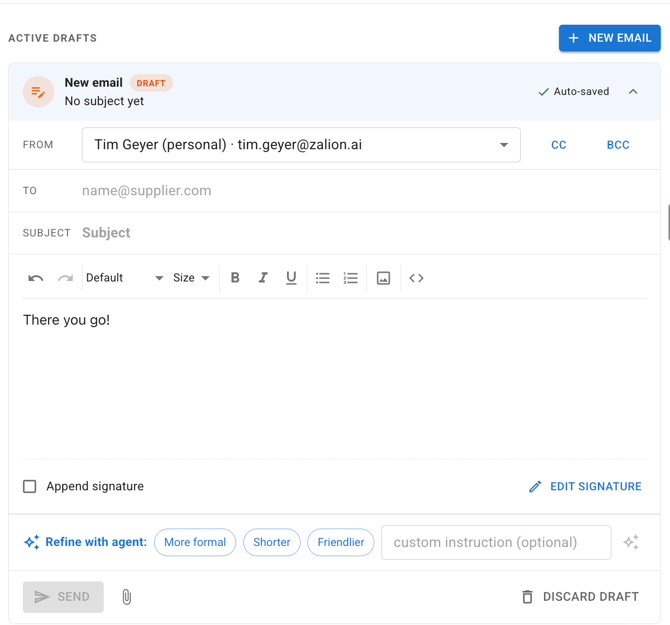
All of the agent's active drafts for the thread are collected in an Active drafts list, so nothing gets lost along the way.
For each draft you can:
- open and edit it directly - recipients, subject, text, and attachments.
- discard a draft you no longer need.
- copy the email content.
- mark it as sent to keep your history accurate (see Working without a connected mailbox below).
When several drafts are ready, use Send all drafts to send them together in a single step rather than one by one. The button shows how many drafts will be sent.
Composing a new email
Select New email to create a message from scratch within the thread.
- In the supplier selector, choose the supplier you want to write to.
- Choose the right contact for that supplier - for example Sales, an account manager, or a quotations address - if several are available.
- Add a subject, text, and any attachments.
Attachments and screenshots
You can add attachments to any email directly in the composer. Use the paperclip to include files such as previous quotes, spec sheets, or screenshots and images, and send them straight from the draft.
Sending from a shared or personal mailbox
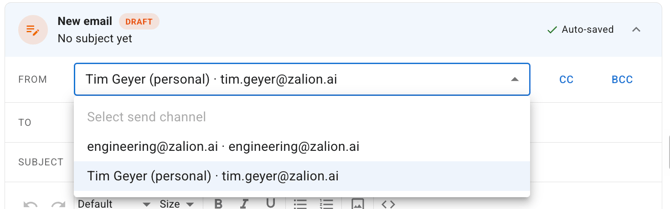
In the panel you decide which mailbox an email is sent from.
- Use the send-from selector to choose whether to send from your shared team mailbox or your own personal mailbox.
- The matching signature is applied automatically based on the selected mailbox. If needed, you can edit the signature before sending.
Having the agent refine a draft
You do not have to polish the wording yourself. Using the text line below the editor, you can have the agent refine the draft.
- Choose a refine action, and the agent rewrites the draft in place.
- Review the updated version, edit it further, or send it.

Working without a connected mailbox
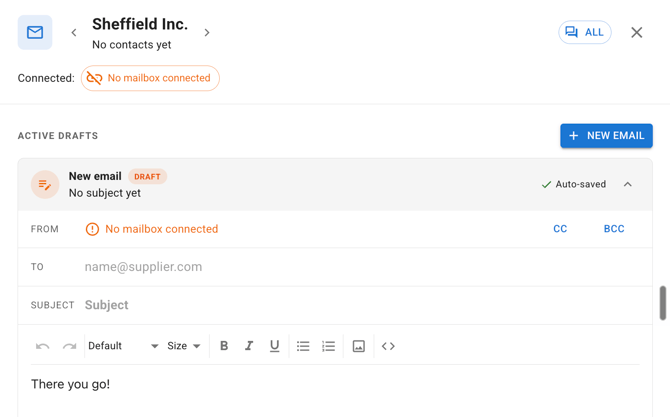
You can use the panel even if no mailbox is connected yet. Nothing is blocked.
- The agent prepares your email drafts as usual.
- Copy the draft and send it from your own email program.
- Soon you can also mark it as sent in the panel so the communication history stays complete and accurate.
Once you are ready, connecting a mailbox lets you send replies directly from the panel.
Frequently asked questions
Which agents include the Email panel? Every Zalion agent involved in email communication, including the Sourcing Agent and the Order Confirmation Agent. The panel behaves the same way in each.
Does the history show all my emails with a supplier? It shows the full email history of the thread you are in, across all the suppliers involved in it. It does not currently combine a supplier's communication from different threads into a single view.
Do I need to connect a mailbox to use it? No. Even without a connected mailbox you can create, copy, and mark drafts as sent. With a connected mailbox you can additionally send directly from the panel.
Where do my drafts go if I do not send them right away? They stay in the thread's Active drafts list, and the counter on the thread's email button reminds you that they are waiting.