
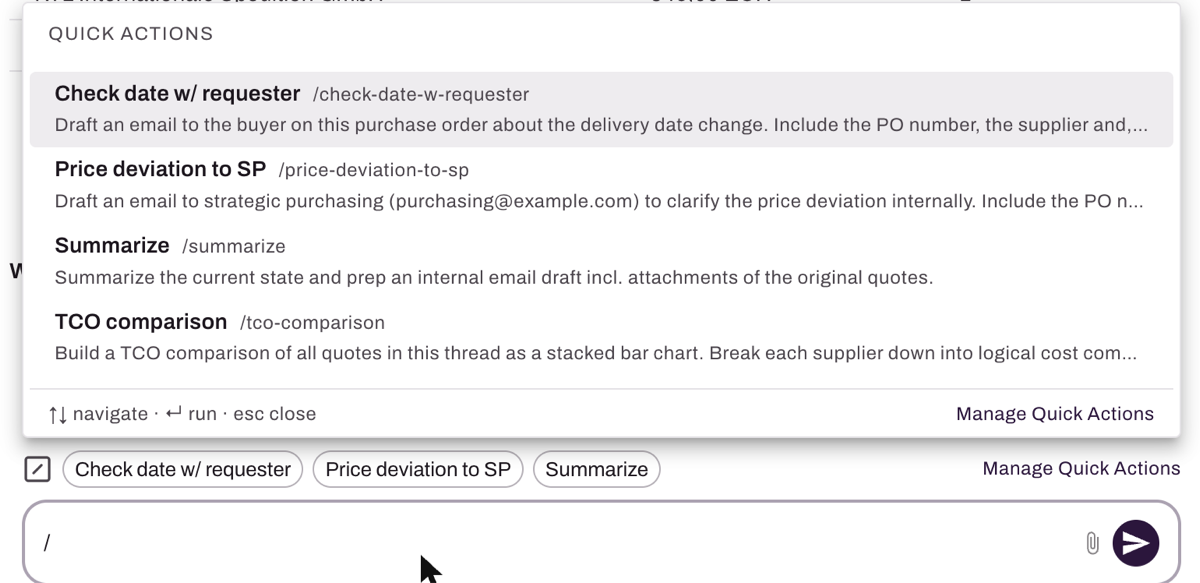
A Quick Action is a saved instruction for the agent. Instead of typing it into the chat every time, you run it with one click or with /. The agent receives exactly the saved text as a chat message, in the context of the open thread.
Where Quick Actions appear
In every thread with an agent chat, across all modules: drafting RFQs, analyzing quotes and checking order confirmations.
- Closed chat bar: the first Quick Action shows right in the bar.
- Open chat: the first three sit as buttons above the input field.
- / menu: type / in the chat or click the / icon to see all matching Quick Actions. Pick one with ↑↓ and run it with Enter.
- “Manage Quick Actions” takes you straight to the settings.

Create a Quick Action
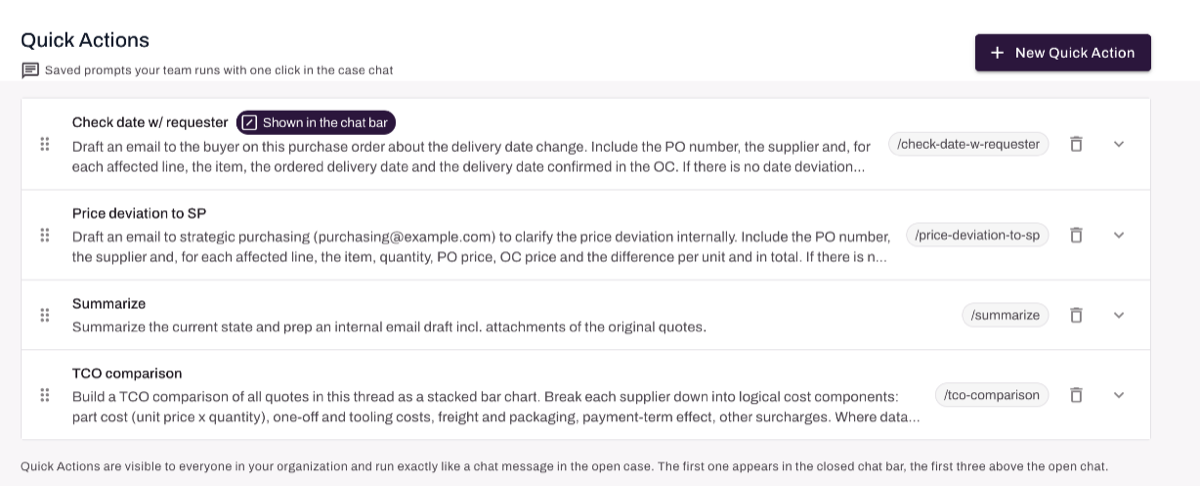
- Open Settings › Quick Actions and click New Quick Action.
- Name: up to 24 characters. It's shown on the button and in the / menu.
- Slash command: filled in from the name. Lower-case letters, digits and hyphens, for example
price. Each command can only be used once. - Prompt: write the instruction just as you'd type it into the chat. Plain language is fine.
- Stages (optional): choose where it should appear: Draft RFQ, Analyze Quotes or Check OC. With no selection it appears in all stages.
- Save. The Quick Action is available to everyone in your organization right away.
Tip for good prompts: say what you want back (table, chart, email draft), who it's for, which details to include, and what the agent should do if there's nothing to do. For example: “If there is no deviation, don't create a draft and just tell me.”
Manage Quick Actions
- Quick Actions are shared across your whole organization. Everyone sees the same ones, and anyone can create, edit and delete them.
- Order: drag and drop by the handle on the left. The order decides which Quick Actions show first above the chat.
- Delete: the Quick Action disappears from the chat for everyone.
- In stages your organization defined itself, only Quick Actions without a stage limit appear.
Examples
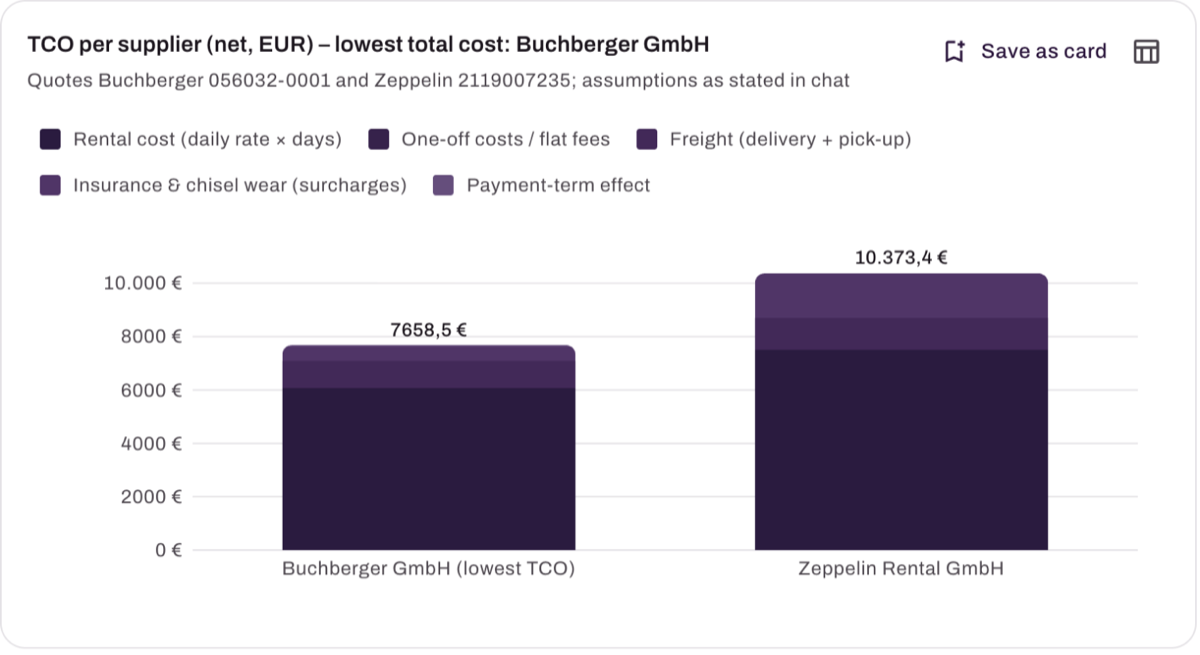
TCO comparison (Analyze Quotes), slash command tco-comparison:
Build a TCO comparison of all quotes in this thread as a stacked bar chart. Break each supplier down into logical cost components: part cost (unit price × quantity), one-off and tooling costs, freight and packaging, payment-term effect, other surcharges. Where data is missing, make a reasonable assumption and state it. Highlight the supplier with the lowest total cost.
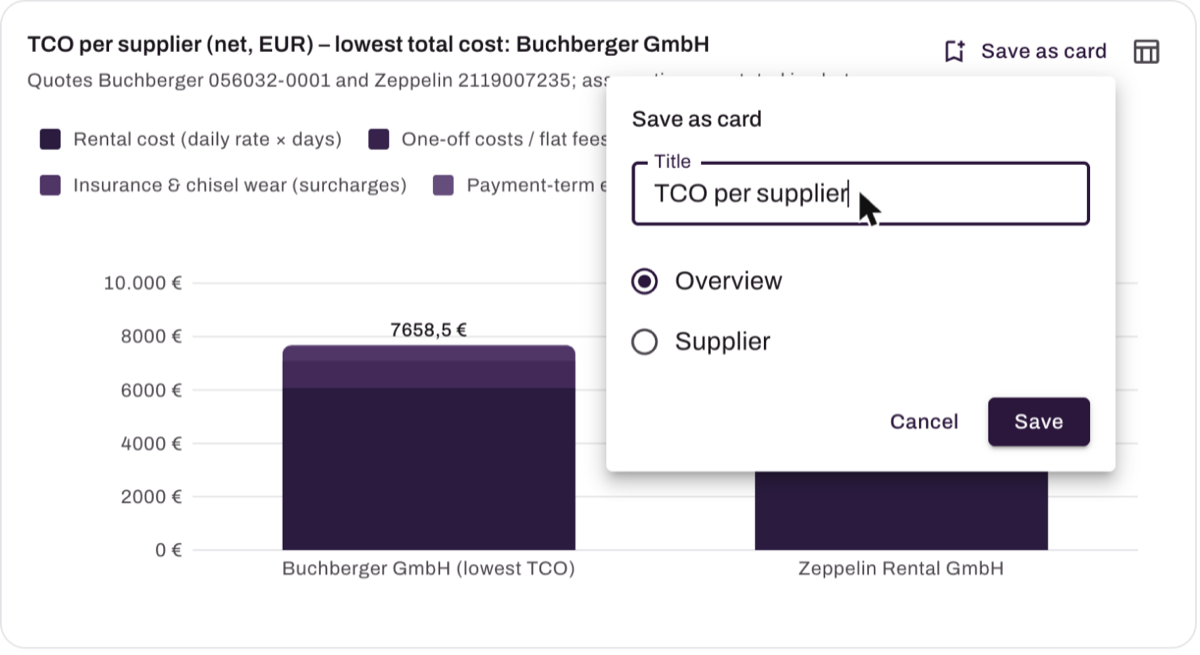
Click “Save as card” to keep the chart on the thread's overview or with that supplier.
Check date w/ requester (Check OC), slash command check-date-w-requester:
Draft an email to the buyer on this purchase order about the delivery date change. Include the PO number, the supplier and, for each affected line, the item, the ordered delivery date and the delivery date confirmed in the OC. If there is no date deviation outside the tolerance, don't create a draft and just tell me. Draft only, do not send.
Price deviation to SP (SP = strategic purchasing, Check OC), slash command price-deviation-to-sp:
Draft an email to strategic purchasing (enter the email address) to clarify the price deviation internally. Include the PO number, the supplier and, for each affected line, the item, quantity, PO price, OC price and the difference per unit and in total. If there is no price deviation, don't create a draft and just tell me. Draft only, do not send.
More ideas: an internal summary of all quotes for sales, a best-case scenario, output in your team's Excel format, a reminder for overdue order confirmations.
Good to know
- A Quick Action never sends anything outside Zalion. It only sends the instruction to the agent. Emails are created as drafts that you review and send yourself.
- A Quick Action contains text only. Attach files in the chat as usual.